
OpenVPN - Permanent köra som administratör
Börja med att högerklicka på OpenVPN ikonen på skrivbordet.

Select Properties

Go the the Compatibility tab, select the tick box at Privilege Level that says “Kör det här programmet som administratör", click Apply, Click OK.

Disable IPv6 in Microsoft Windows (7)
Start by going to the Control Panel

Välj Visa nätverksstatus och åtgärder

Select Local Area Connection

Click Properties

Uncheck Internet Protocol Version 6 (TCP/IPv6) and click on OK.

Click Close to Finish.

Disable IPv6 in Mac OS X
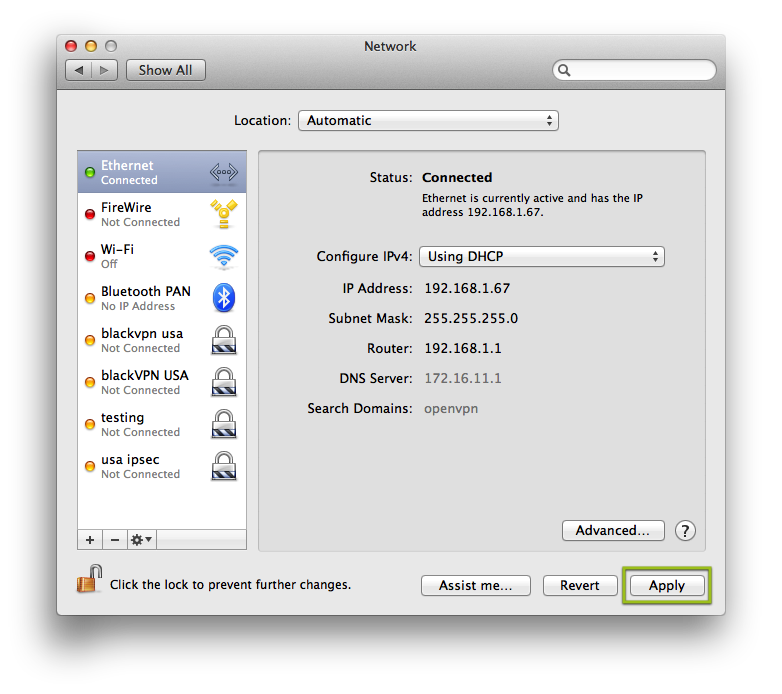
Start by going to the System Preferences and selecting Network
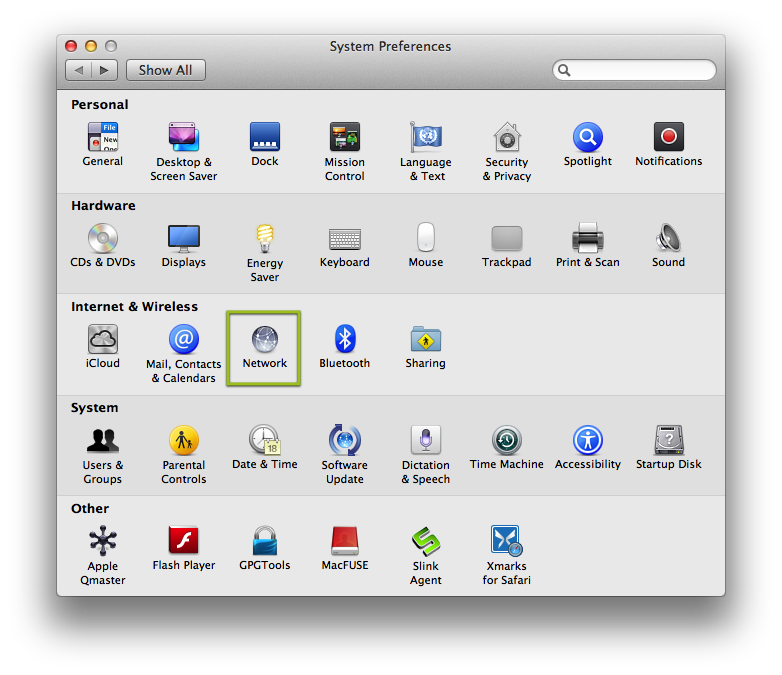
Select Ethernet if you are using Ethernet and Wi-Fi if you are using Wi-Fi. Then click on Advanced
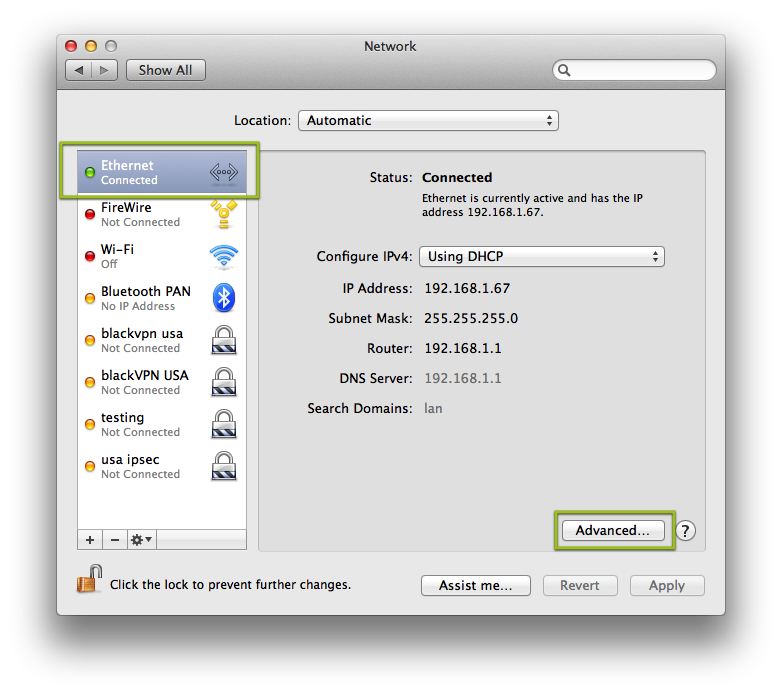
Ändra från automatiskt
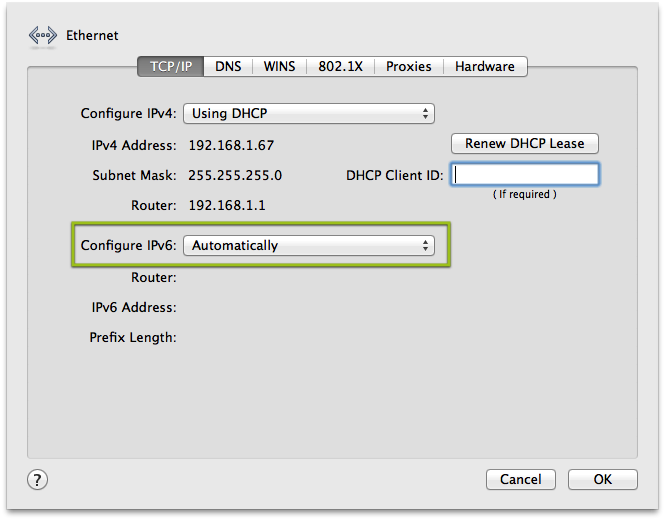
Set it to Link-local only and click on OK. This will stop your computer from trying to use IPv6 to connect to the internet.
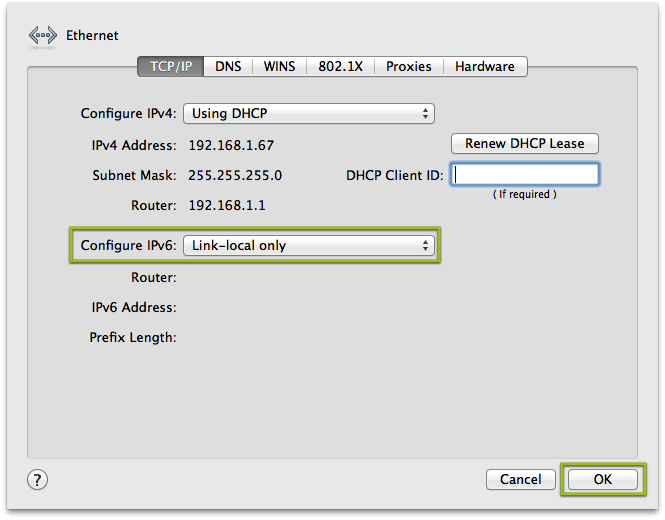
Click on Apply to finalize the changes.
Sharing the VPN connection with PPTP or L2TP/IPsec on Mac OS X
Om du använder Mac OS X och vill dela din VPN-anslutning till en enhet som inte stöder VPN? (TV/XBOX360/PS3) ?
This is how you do it with the built in internet connection sharing in Mac OS X:
Med den här inställningen jag är ansluten till VPN med Wifi och jag kommer att dela VPN på LAN / Ethernet-porten.
- Go to System Preferences and select Sharing.
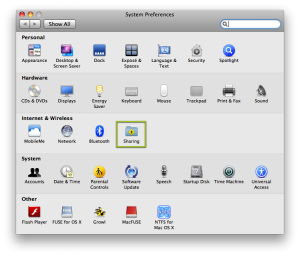
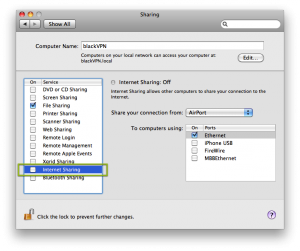
- Select Internet Sharing.
- Select the VPN to share from the drop down list.
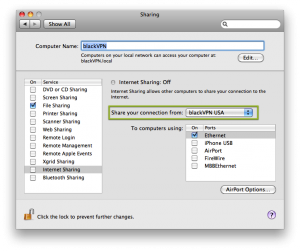
- Välj vilket gränssnitt du vill dela ut VPN till.
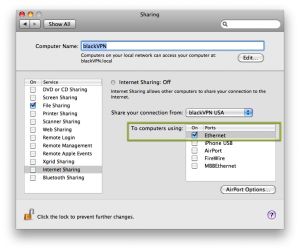
- Markera kryssrutan om möjliggör delning.
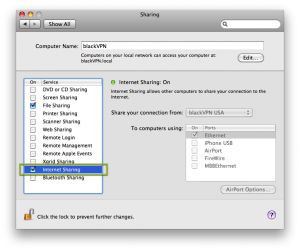
- När internetdelning är aktiv blir ikonen grön och status ändras till: On.
- Koppla in enheten till LAN / Ethernet-porten på datorn och du är färdig..


Spara användarnamn och lösenord i OpenVPN
Start by opening the config file that you want to save the username & password for.
Jag har använt WordPad för att redigera filer i denna how-to.
Du kan hitta konfigurationsfilerna i följande mapp: C:\Program Files\OpenVPN\config

Redigera den sista raden i filen och lägg till ett filnamn, I’ve used the filename password.txt:
Before editing the config file:

The config file should look like this after you have edited it:

Save the file. (Repeat this for all VPN servers that you want to save the username/password for)
Skapa en ny fil med ditt användarnamn på första raden och ditt lösenord på den andra raden:

Spara filen som password.txt i din OpenVPN config mapp (C:\Program Files\OpenVPN\config ).
You can now connect to the VPN without entering the username & lösenord.
Stop your IP being exposed after VPN disconnection
It is inevitable that either because of a shaky ISP connection or some other network or software problem your Internet or VPN connection will drop at some point. In some cases you will not get a visible warning and you will carry on browsing or sharing files peer to peer as normal with your computer IP exposed for everyone to see.
The worst part of your VPN connection dropping out and not getting a warning is that you will not realize of this and your anonymous Internet surfing will have been compromised without you ever knowing, your OpenVPN software normally automatically reconnects after the VPN connection has dropped but by then your computer IP will have been compromised.
How to stop a VPN disconnection showing your computer IP?
- Use a software application to stop IP exposure after VPN disconnection
VPN LifeGuard: Open source freeware application to protect yourself in the event of a VPN disconnection. It basically blocks Internet access in the event of a VPN disruption. (Windows)
VPNCheck: VPNCheck will disable your web browser or any other specified application to stop your real IP being exposed when your VPN connection breaks.(Windows/Linux)
VPNetMon: VPNetMon prevents unsecured connections after your VPN connection goes down, VPNetMon will close down the specified applications when your Virtual Private Network disconnects. (Windows)
- Use a firewall to force all your applications through the VPN:
Using a software firewall you can tell it to allow applications to connect only through the VPN, including your browser, the only downside to this is that firewalls all have very different configuration settings and you will probably need to read the documentation or ask at some computing forum about how to bind your browser with your VPN connection.
The firewall that comes with Windows is very limited and I am not sure if you can force all traffic through the VPN using Windows firewall, if you need a good free high quality software firewall consider PCTools Firewall or Comodo Firewall instead.
Sharing the VPN connection with Tunnelblick

If you are you using Mac OS X and want to share the VPN connection to a device that doesn’t support VPNs?
With Tunnelblick you can do it.
- Create a filed called blackvpn_tunnelblick.sh or anything you like.

- chmod +x blackvpn_nat_on.sh
- start the file by running sudo ./blackvpn_nat_on.sh (You will be asked for you admin password)
- When you type the command you will see output like the following:

- Färdigt, now connect your other devices set their default gateway to to the IP of the Mac OS X computer.
- Turning off the sharing, create another file named blackvpn_nat_off.sh

- chmod +x blackvpn_nat_off.sh
- start the file by running sudo ./blackvpn_nat_off.sh (You will be asked for you admin password)


